-
Set the band on the tester
On the tester, tap the gear icon for the settings, move to "Band" with the arrow and choose the band of your region, in Europe EU868. Confirm with "OK" twice.
-
Read the keys from the tester
Every tester comes with its own Device EUI, Application EUI and Application Key. Open WisToolBox on your phone, connect to the tester over Bluetooth and open "Parameters" → "LoRaWAN keys, ID, EUI". Note the three values.
You can also enter values of your own there and tap "Apply". The tester restarts with them.
-
Create an application
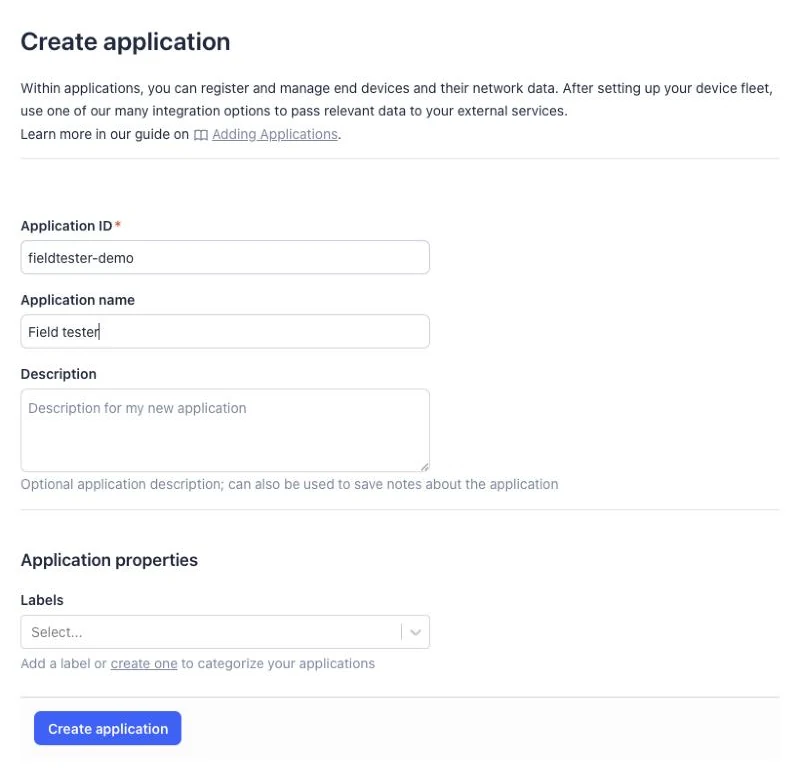
Sign in to the console of The Things Network, choose your cluster (in Europe eu1) and open "Applications" → "Add application". The ID is up to you.
-
Register the tester
In the application, open "Register end device" and choose "Enter end device specifics manually": the RAK10701-Plus is not in the device repository. Choose the frequency plan of your region, "LoRaWAN Specification 1.0.3" and "RP001 Regional Parameters 1.0.3 revision A".
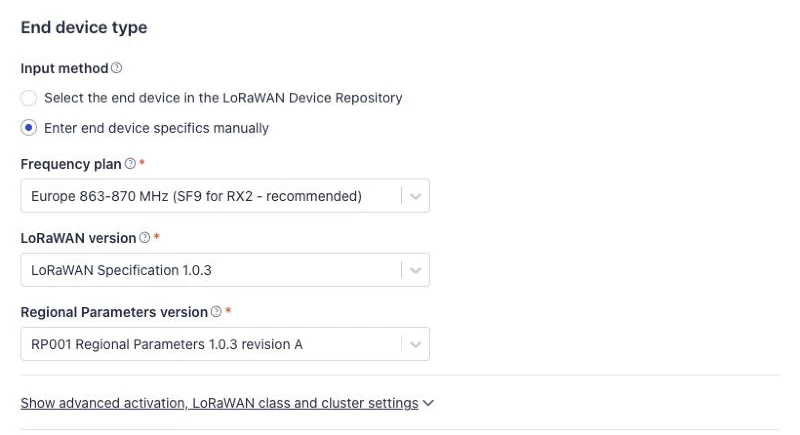
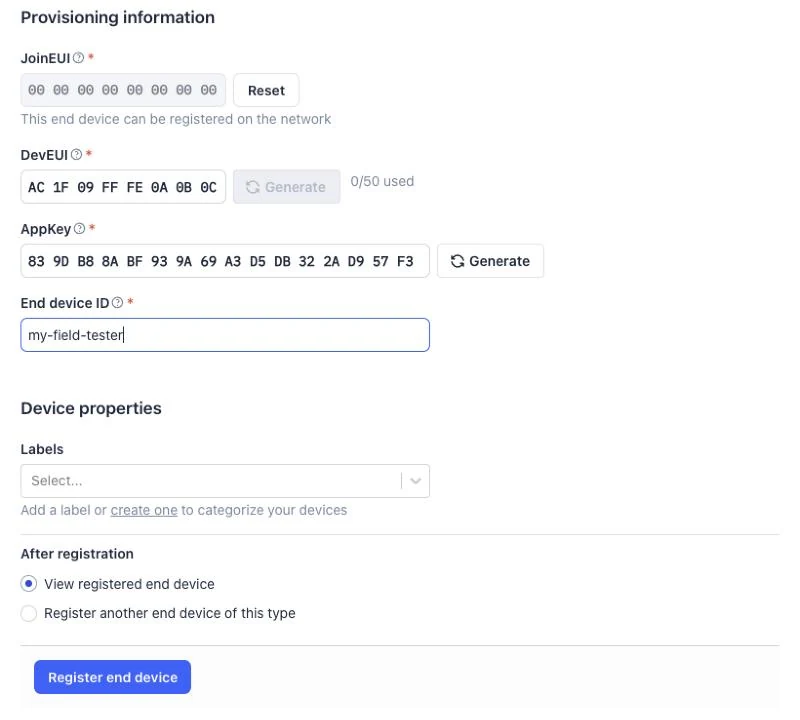
Enter the Application EUI from step 2 as JoinEUI and click "Confirm". Then enter the Device EUI as DevEUI and the Application Key as AppKey, give the tester an ID and click "Register end device".
-
Create an API key
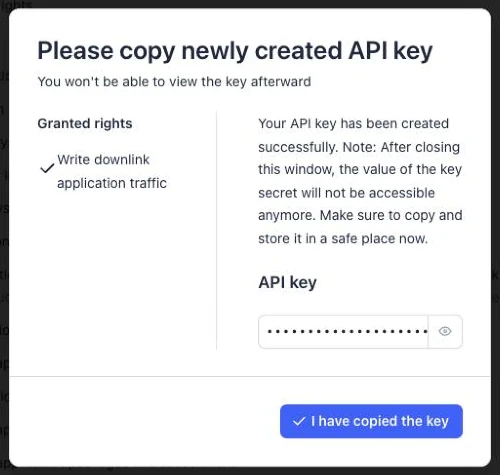
With this key the service sends the values back to the tester. Open "API keys" → "Add API key", choose "Grant individual rights" and tick only "write downlink application traffic".
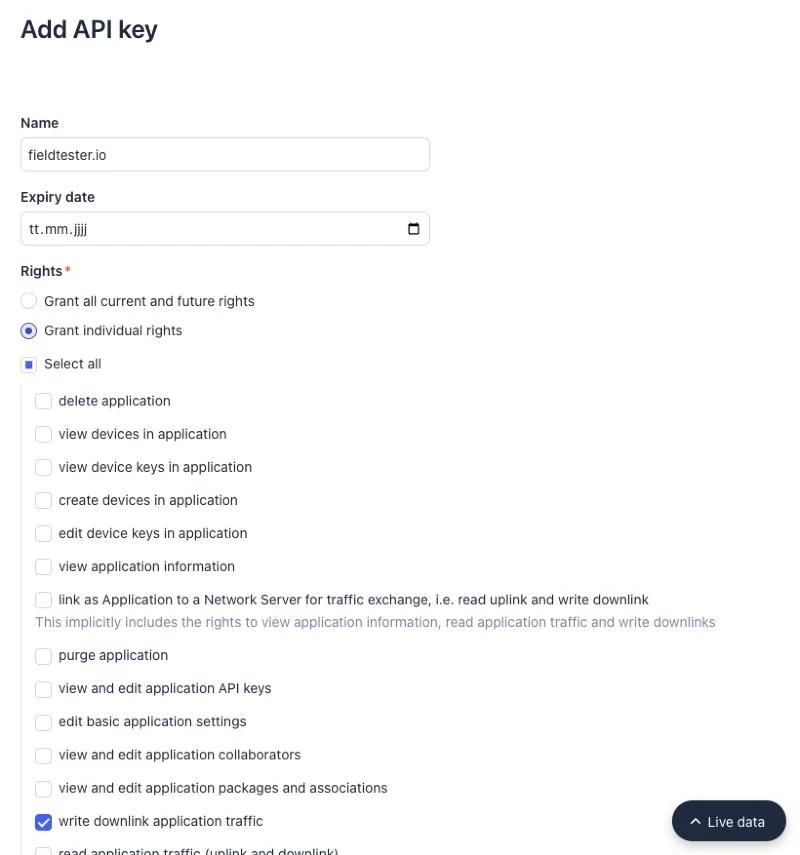
Copy the key now: The Things Network shows it only once.
-
Add the webhook
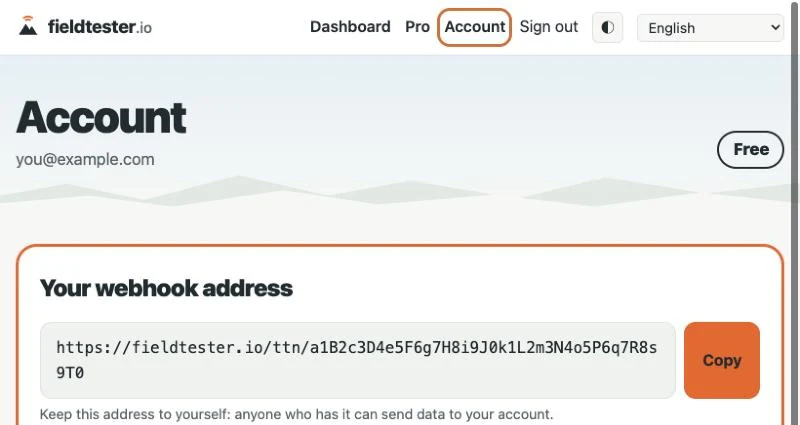
First copy your webhook address: sign in here, open "Account" at the top and click "Copy" next to "Your webhook address".
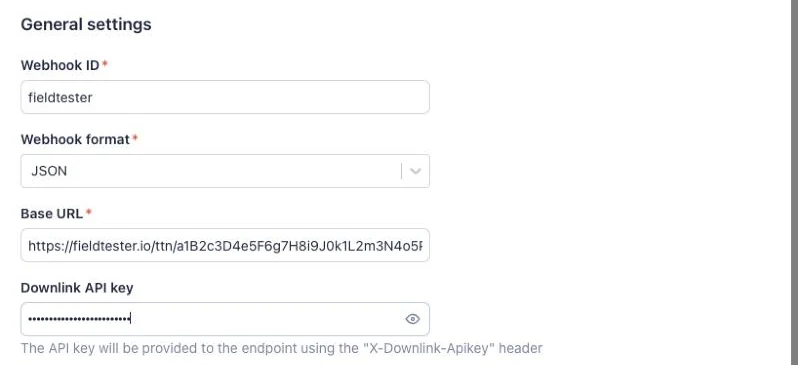
Open "Integrations" → "Webhooks" → "Add webhook" → "Custom webhook" and fill in:
- Webhook ID
fieldtester- Webhook format
JSON- Base URL
- Your webhook address
- Downlink API key
- the key from step 5
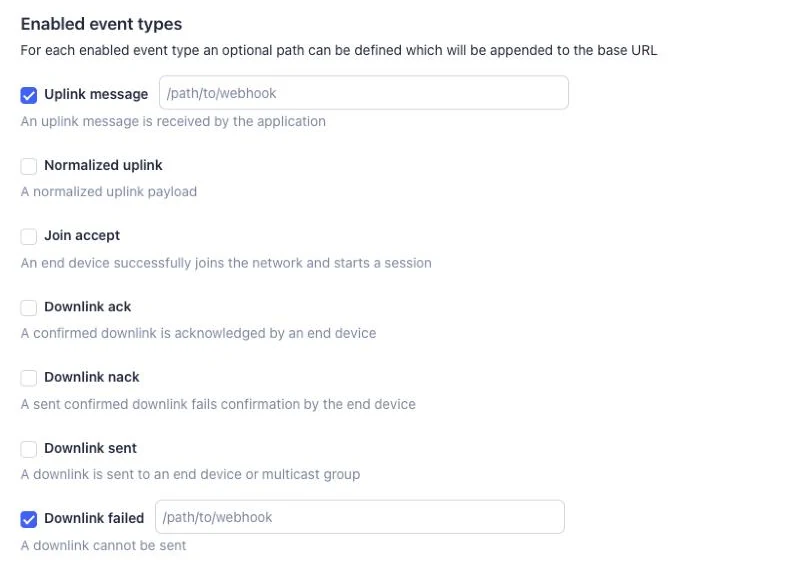
Under "Enabled event types", tick "Uplink message" and "Downlink failed" and leave the paths empty. Then click "Add webhook".
A payload formatter is not needed. If your application already has one, leave it: the service reads the raw bytes.
-
Switch the tester off and on
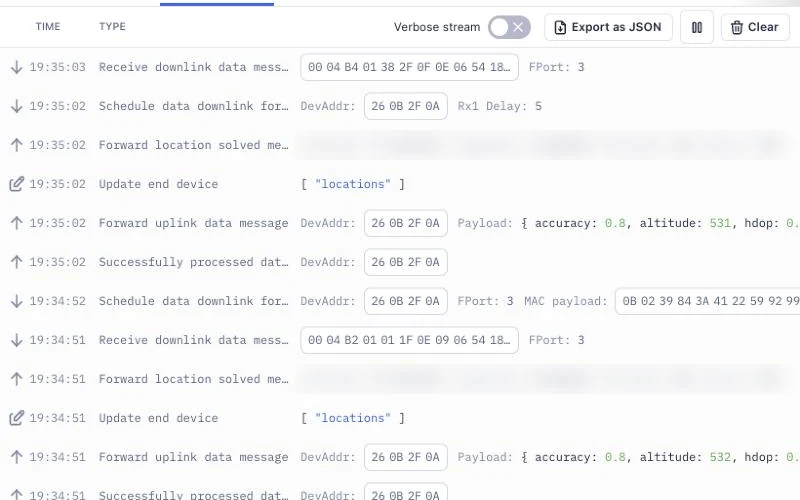
In "Live data" of the tester you see an uplink on fPort 5 and the reply on fPort 10. After that every uplink on fPort 1 gets its values back on fPort 3, and the display shows all values. On your dashboard the tester appears with its model.
If it does not work
- Nothing arrives in "Live data"
- The band on the tester and the frequency plan do not match, the keys differ, or no gateway is in range.
- The display stays half empty
- Check the webhook address and the API key. If The Things Network could not deliver a reply, your dashboard shows the reason on the tester.
- Over the limit of your plan
- Free serves one tester, Pro up to three. Remove a tester on the dashboard to free its place.